Get back a feature your agent dropped
The Solar Commons demo on Critter's homepage is a small app for a building that shares its rooftop solar: what the panels are making, and which washers and EV bays are free to book. Five prompts built it up. The fourth, “Put it all in cards”, tidied the layout and quietly dropped the Book buttons on the laundry and EV bays. Nothing broke loudly; the buttons were simply gone.
These versions were prepared for the walkthrough and run in Critter’s actual viewer. You can browse and compare them without installing the CLI. The guides below show how to apply the workflow to your own Git history.
Watch the walkthrough#
A silent, 36-second walkthrough of the prepared demo versions. The live app is on “Put it all in cards”, with no Book buttons. Open the history from the version name in Critter's top bar and pick “Add the EV bays”, which is bookmarked because its Book buttons work. Step back and forward with the arrow keys, then compare it with the live app. Turn highlights off and on, then hover over changes to read their tags: the reworded laundry count, a changed colour, and the laundry's Book button, tagged Removed. Finally, switch to 100% zoom and scroll to the EV bays, whose Book button is tagged Removed too.
Browse the history#
Open the browsing demo, then select the version name in the middle of Critter's top bar to open the history. You can also step between versions with the ← and → keys.
| Version | What the prompt changed | Question to consider |
|---|---|---|
| Start with the building today | What the panels are making, the battery and the grid, with the day's solar curve. | Can a resident tell at a glance whether it's a good time to use power? |
| Add laundry bookings | A laundry list with who is using each machine and a Book button on the free one. | Can someone book a free washer without leaving the page? |
| Add the EV bays | The same list for the car chargers, with its own Book button. | Do the two lists read as one pattern? |
| Put it all in cards | Stats, chart and lists move into a grid of cards. The Book buttons are gone. | What did the tidier layout lose? |
Switch between “Add the EV bays” and “Put it all in cards”. Look at what you can do on each screen before looking at how it's styled. The cards are neater, but a resident can no longer book anything.
“Add the EV bays” is already bookmarked, with the note “Book buttons work here.” Bookmark another version by selecting the bookmark in the bar or pressing B, then choose Only show bookmarks in the history to see just the versions you kept. The demo keeps bookmarks only until you reload.
See exactly what changed#
Open the comparison. Critter displays “Add the EV bays” beside “Put it all in cards”, each under its own header.
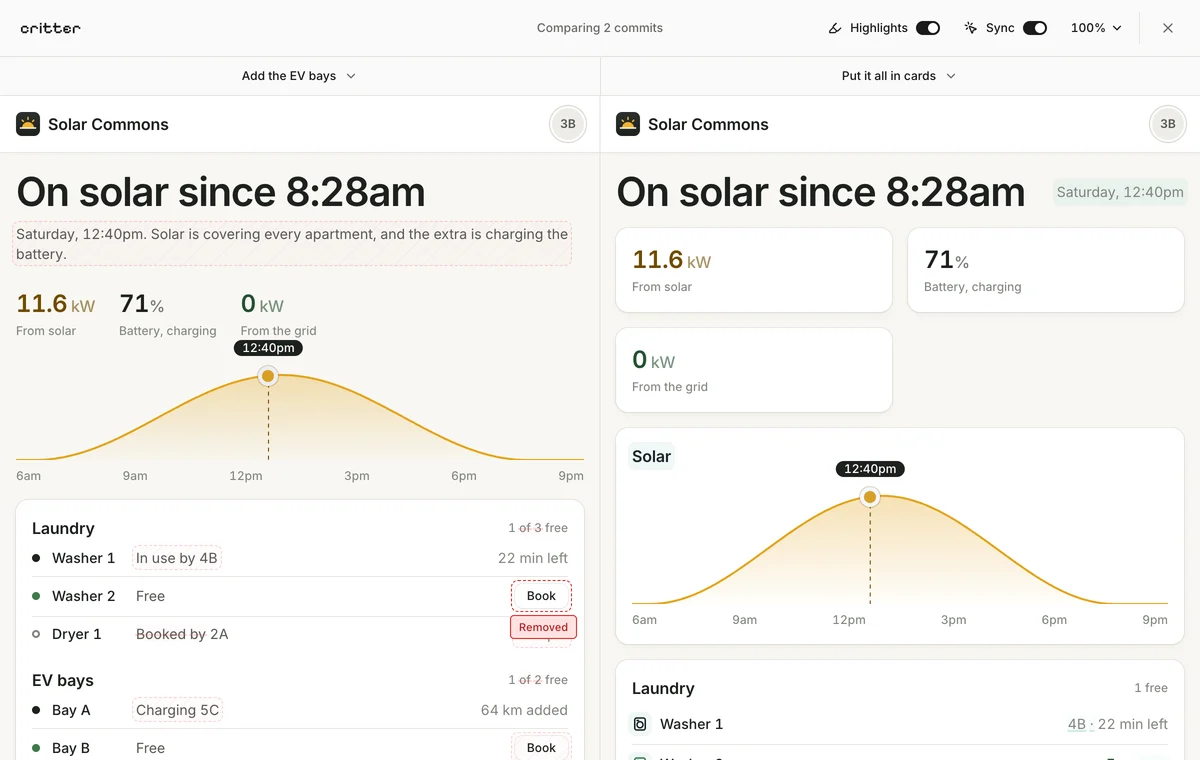
Most of what changed is layout: the stats and lists move into cards, and a few words are reworded, such as the laundry count going from “1 of 3 free” to “1 free”. With highlights on, added words are highlighted and removed ones struck through, and an element that exists on only one side is hatched in red. Hover over the Book button and its tag reads Removed. Then turn highlights off and read each screen naturally. A highlighted region tells you where something changed; it does not tell you whether the change improved the design.
Once you know what was lost, ask your agent for it by name, pointing at the version where it worked: “Bring back the Book buttons from EV bays.” The last commit on main in the alternatives demo does exactly that.
To compare other moves, select a header and choose another version for that side, such as “Start with the building today”. Use Sync when the interactions correspond, and turn it off to inspect a version independently. Compare at 100% as well as at the zoomed-out views, because shrinking a whole screen can disguise cramped text and controls.
Explore a different answer#
The alternatives demo groups four variations under Rooftop sun, four answers to “help residents use the rooftop sun together”: a Building view, a Sun planner, Neighbours, and a Shared planner that remixes the Sun planner. It opens on the remix compared with its source, each pane headed by the group's switcher. Pick another variation in either header to change that side, or close the comparison to flick through the group from the bar.
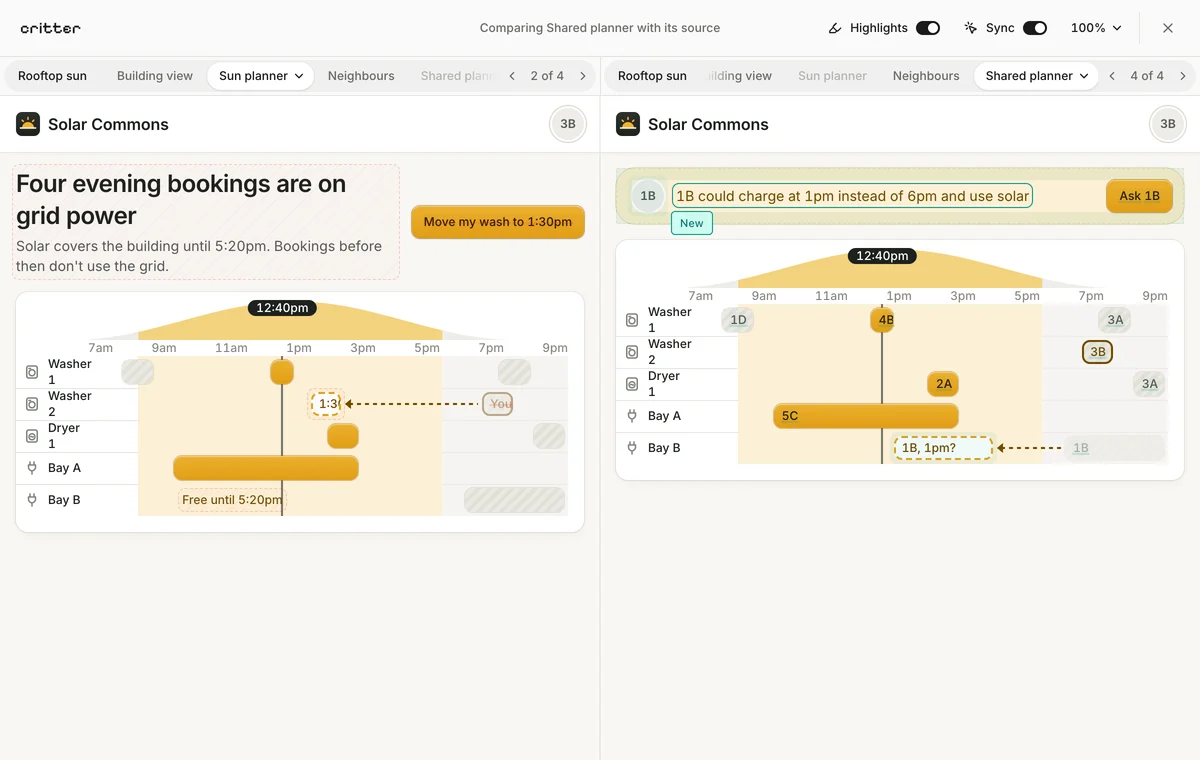
The directions make a larger design choice than moving a border or changing a font size. The Building view shows spare power across the building; the Sun planner shows which bookings run on grid power and offers to move yours; Neighbours shows who made room for whom; the Shared planner adds a nudge to ask a neighbour to swap. Each has something the others lack, which the comparison marks as added or removed. Browsing them together makes it easier to discuss what is gained and lost in each direction.
For a real project, define the question before asking an agent to make variations. Keep the content, route, and task consistent so the comparison reveals the design decisions. An alternative does not need to look more elaborate to be worth considering.
Try the workflow with your own screen#
You do not need to reproduce this app. Pick a page in an existing HTML prototype, Vite app or statically exportable Next.js project, save a useful baseline commit, and keep committing as you and your agent change it. Run critter view for a framework app, or point at an HTML file with a command such as critter view prototypes/today.html, to browse the result alongside the earlier versions.
If you have two competing approaches, develop them on separate branches named critter/<question>/<variation>, usually in worktrees; Critter groups them by that name. Critter keeps those results available; your coding agent handles the implementation and Git work, and you choose what to continue.
Follow Compare UI versions from Git commits for the linear workflow, or Explore design alternatives with coding agents for a worked example using worktrees.