Compare UI versions from Git commits
Critter turns Git commits into interactive versions of your interface. Run it in a supported project, open a version from the history, and choose Compare to inspect two versions side by side in the browser. You can compare two commits or compare a commit with your live app.
This is useful when a code diff tells you which files changed but you still need to judge the result: whether a page scans more clearly, whether its spacing works, whether an earlier layout was better, or whether something quietly went missing.
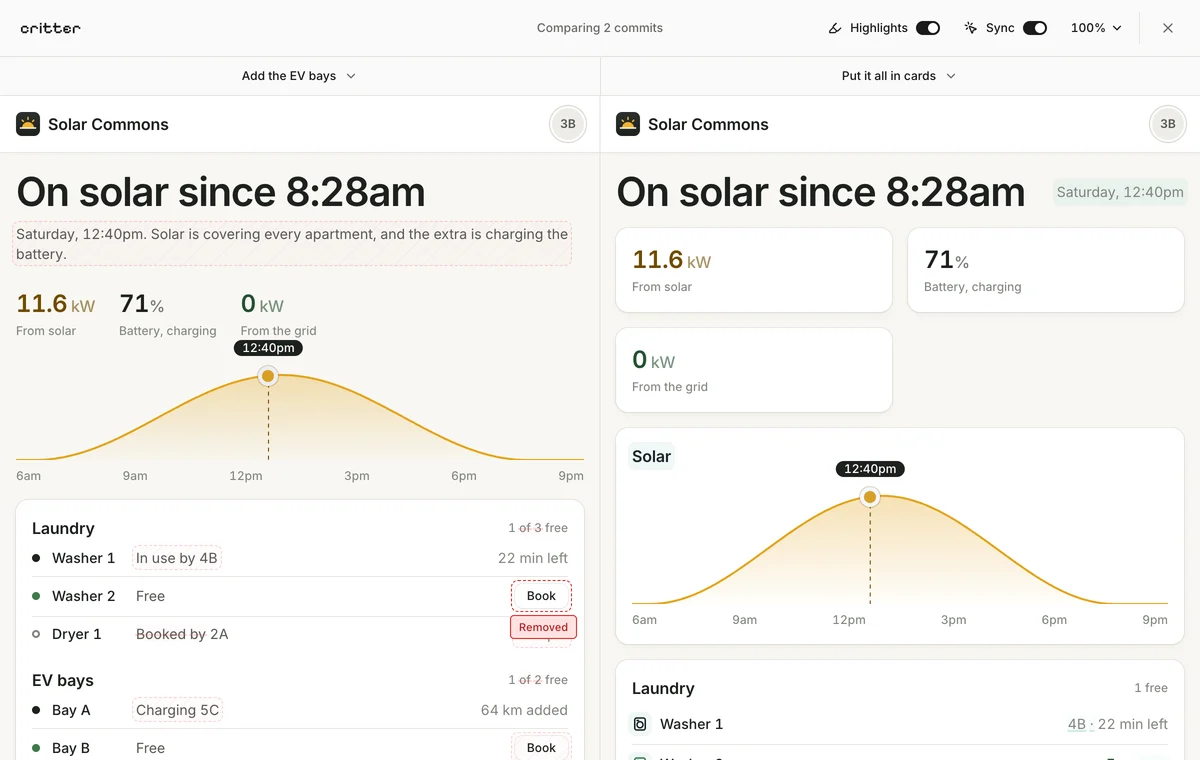
The image shows prepared Solar Commons demo versions. Try the comparison, or follow the steps below in your own repository. The demo's version identifiers are fixtures, not commits to check out in your project.
Start with a supported project#
You need Node.js 18 or newer and Git. Critter supports plain HTML/CSS/JavaScript prototypes, Vite, and statically exportable Next.js projects. Historical framework versions must also be buildable. See supported projects and limitations before starting with an app that depends on server rendering or external services.
Install the package:
npm install -g @idamadam/critter
For Vite or statically exportable Next.js, run from your project's directory:
critter view
Critter starts the app's development server and prints a local viewer URL. Keep the process running and open that URL. During a design session, this replaces your usual npm run dev command.
For a plain HTML prototype, point at a page from inside its Git repository:
critter view prototypes/today.html
Critter serves the repository as the website root, so the page can load shared CSS, JavaScript, images and sibling pages. It pins that file when switching versions. No package manifest or build tool is needed; historical previews use committed files. Use your own file path, and quote paths containing spaces.
If your repository contains several framework apps, select the one to review:
critter view --app apps/web
Replace apps/web with the actual app directory. The setup guide has the full installation flow and a prompt for your coding agent.
Make the history useful to read#
Existing commits already appear in Critter. You do not need a separate checkpoint system or a new branch for every refinement.
When you reach a meaningful iteration, review and commit the files you changed using your normal Git workflow. A subject such as “Add a Book button to free washers” is more useful in a visual history than “Update components”. If an agent handles commits, ask it to name the visible design change.
For example, after staging the intended changes in a shared-solar app:
git diff --cached
git commit -m "Add a Book button to free washers"
Keep unrelated changes out of the commit. Critter follows ordinary Git history; a version represents the committed project, not only the component mentioned in its label.
When a version is worth coming back to, bookmark it and say why: select the bookmark in the bar or press B. A reason such as “Book buttons work here” helps you find it again, and bookmarked versions are listed first when you choose a side to compare. Bookmarks are Git notes, so they do not amend the commit. See bookmarks for details.
Open the versions you want to compare#
- Select the version name in the middle of Critter's top bar to open the history, then select an earlier commit. You can also step between versions with the ← and → keys. Critter prepares a historical version on demand, then caches it outside the repository. HTML previews use committed files directly; a framework version shows its build steps, and its first build can take a minute or two.
- Select Compare in the bar to put the version on screen beside the live app, or choose Compare on a different row in the history. Both interfaces appear side by side, each under its own header.
- Select either header to choose a different version for that side, including the live app while you refine the current design. When a side shows a design variation, its header is the group's switcher instead: select another variation's tab to swap that side, or the tab on screen to choose any version.
- Comparisons open at 75% zoom so both layouts fit. Switch to 100% when judging type, padding, and control sizes, or 50% for an overview of long pages.
- Press Esc, or select the close button, to leave the comparison.
On a phone, Critter shows one version at a time; a Before | After switch flips between them, and a menu holds Highlights and Sync.
For an existing framework route such as /bookings/laundry, pin the screen before reviewing it:
critter route /bookings/laundry
Use a route that exists in the versions being compared. A shared route helps you evaluate the same screen rather than two unrelated pages. For HTML, selecting a file with critter view already pins its page path; you do not need to invent an extensionless route.
Review a design question, then test the interaction#
Pick one question before you start. In the Solar Commons example: “Can a resident still book a free washer from this page?” Look at what each screen lets someone do, then at its layout. A layout with fewer changes is not automatically the clearer layout.
Turn Highlights on to mark what changed between the two sides. At rest the marks are faint: added words are highlighted and removed words struck through, added spacing shows as strips, new elements are outlined and removed elements are hatched in red. Hover over a change to outline it and see a tag that names each property with its old and new values, such as a padding or colour change. Turn Highlights off again to judge the interface as someone would normally see it.
Highlights need both sides loaded. While a version builds, or the live dev server is starting, the control reads Highlights pending, and its tooltip explains what it is waiting for, including which side could not load. These highlights use the rendered page structure; they are review aids, not a pixel-perfect image diff or a visual regression test with a pass/fail result.
With Sync on, Critter can mirror scrolling, clicks, and form interactions between the two versions. Try opening a disclosure or moving to a shared screen. If the designs have very different controls, turn synchronization off and inspect each independently. Mirrored interactions do not establish that every flow is equivalent.
When working with a coding agent, a useful review request is:
Compare the version where booking worked with the current one at the same route. Help me find what the new layout dropped, such as buttons or states. Keep both versions available while I decide what to refine.
The agent can handle implementation and Git mechanics. You provide the design goal and decide what to keep.
If a historical version does not open#
A version that fails to build shows its first error in the pane, with the build output and a Retry build button. Retry after fixing a temporary problem, such as a network failure while installing dependencies. To dig further, run the compatibility check:
critter doctor
Then read the full build log using the commit identifier shown in your viewer:
critter logs <sha>
A historical framework build can fail because dependencies, environment variables, or the build configuration are no longer available. For HTML, check that the page and its supporting assets existed in the selected commit, and that asset URLs resolve from the chosen website root. A static snapshot also does not rewind a database, authentication service, or third-party API. Keep review data predictable when comparing data-driven screens.
For alternatives that should develop independently from the same starting point, use the design variations workflow. For a sequence of smaller improvements, ordinary commits are enough.